

Recovering Deleted Items from iPad
August 12, 2025
Setting Up Apple Watch Passcode
April 24, 2026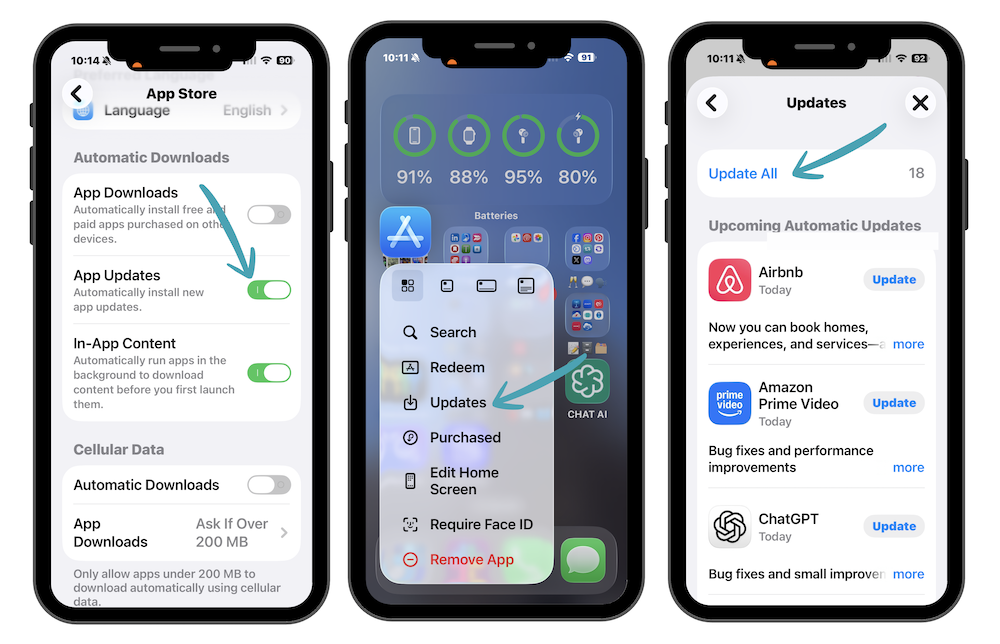
App updates aren’t just about new features, they fix bugs, patch security vulnerabilities, and keep your device running smoothly. Every time a developer pushes an update to the App Store, it could include anything from a minor performance tweak to a critical security fix.
Staying current matters, and Apple has made it incredibly easy to do so without lifting a finger, as long as your settings are right.
Enable Automatic iPhone Updates
It is best to turn on automatic app updates. With this enabled, iOS quietly updates your apps in the background overnight with no effort required on your part.
Go to Settings > App Store, then toggle on App Updates under the Automatic Downloads section.
With automatic updates switched on, your apps will refresh while your device is charging and connected to Wi-Fi.
Check for Updates Manually
Automatic updates are great, but sometimes you want to make sure everything is current right now — maybe after hearing about a specific app fix, or before a big trip. Here’s the fastest way to manually check and update all your apps in four simple steps:
- Long-press the App Store icon – Press and hold the App Store on your Home Screen until the quick-action menu appears.
- Tap “Updates” – Select Updates from the pop-up menu to jump straight to the updates screen.
- Pull down to refresh – Drag down on the screen to force the App Store to check for any newly available updates.
- Tap “Update All” – Hit the Update All button at the top to install every pending update in one go.
With automatic updates and this quick manual check in your back pocket, your iPhone and iPad will always be running the best, most secure versions of every app.