

Beware of Online Invitation Scams
September 23, 2026
Learn About the New Siri
September 23, 2026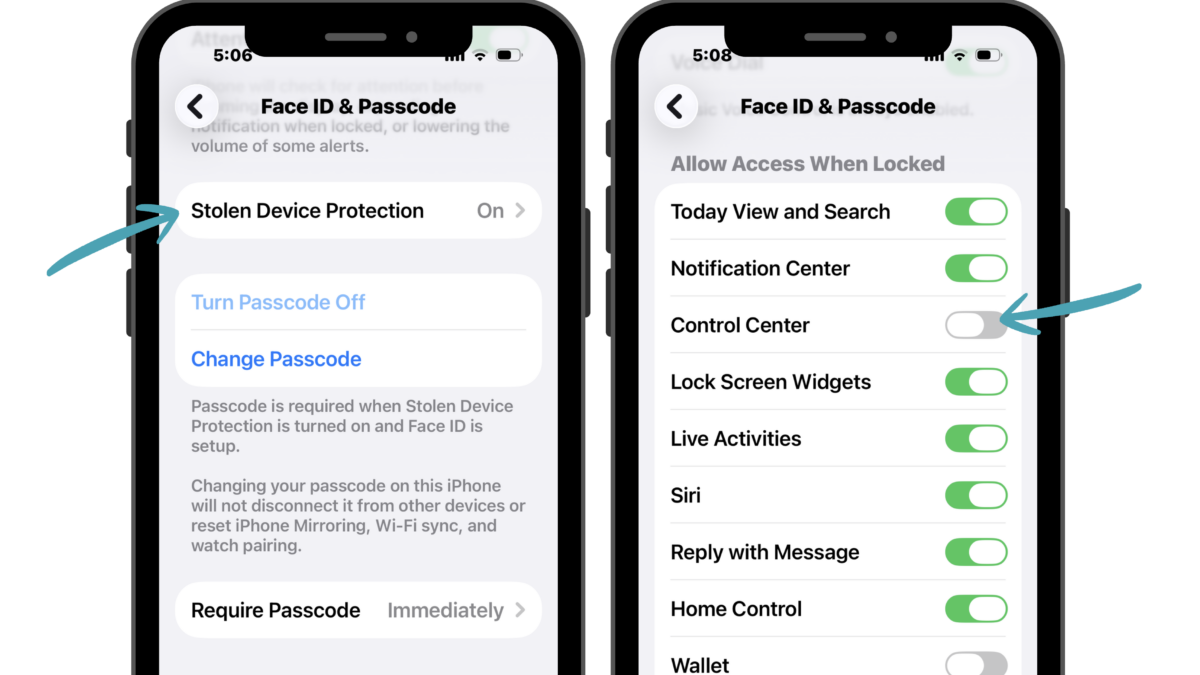
Your iPhone holds a lot of important information — photos, messages, email, passwords, financial information and more. If your phone is ever lost or stolen, a few simple settings can help protect both your device and your Apple Account.
Make Sure Face ID and Your Passcode Are Set Up
Go to Settings > Face ID & Passcode and make sure Face ID is working properly and you have a passcode enabled. Choose a passcode that isn’t easy for someone else to guess.
Turn On Stolen Device Protection
Under Settings > Face ID & Passcode > Stolen Device Protection, make sure this feature is turned on.
Stolen Device Protection adds another layer of security if someone steals your iPhone and also knows your passcode. It can require Face ID and even a security delay before certain sensitive changes can be made.
Turn On Find My iPhone
Go to Settings > [your name] > Find My > Find My iPhone. Turn on Find My iPhone, Find My network and Send Last Location. Together, these settings give you the best chance of locating your iPhone if it goes missing.
Turn Off Control Center When Your Phone Is Locked
Go to Settings > Face ID & Passcode > Allow Access When Locked and turn off Control Center.
This means someone can’t access Control Center without first unlocking your iPhone, adding another simple layer of protection if your phone falls into the wrong hands.
You don’t want to discover that an important security setting is turned off after your iPhone disappears. Take a few minutes now to check these four settings.