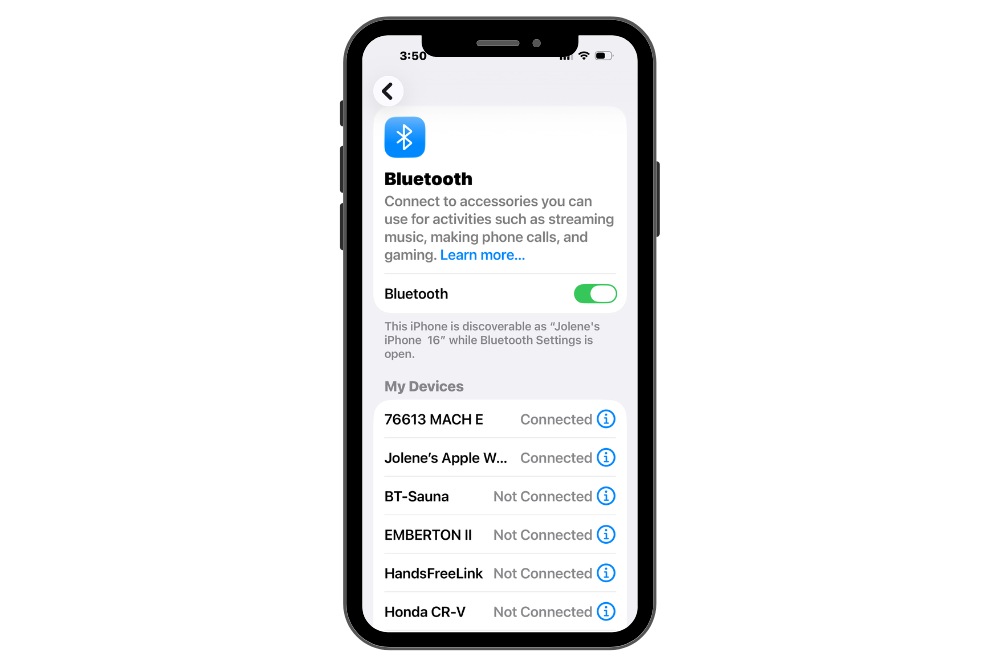


Should You Turn Off Bluetooth and Wi-Fi to Stay Safe?
August 4, 2026
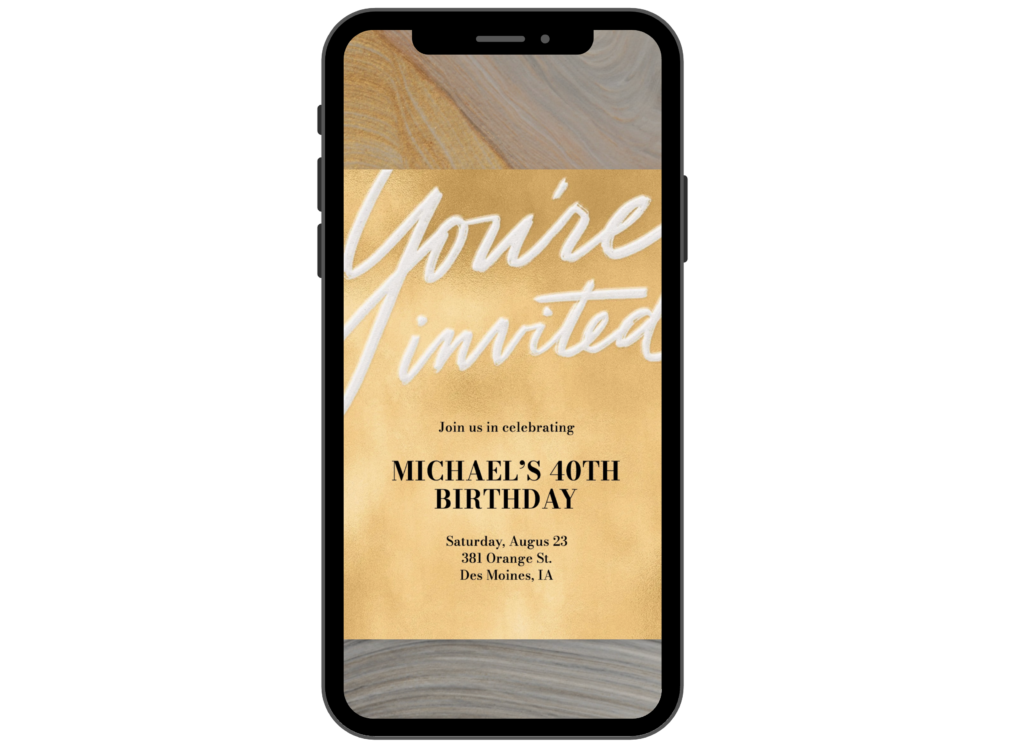
Beware of Online Invitation Scams
September 23, 2026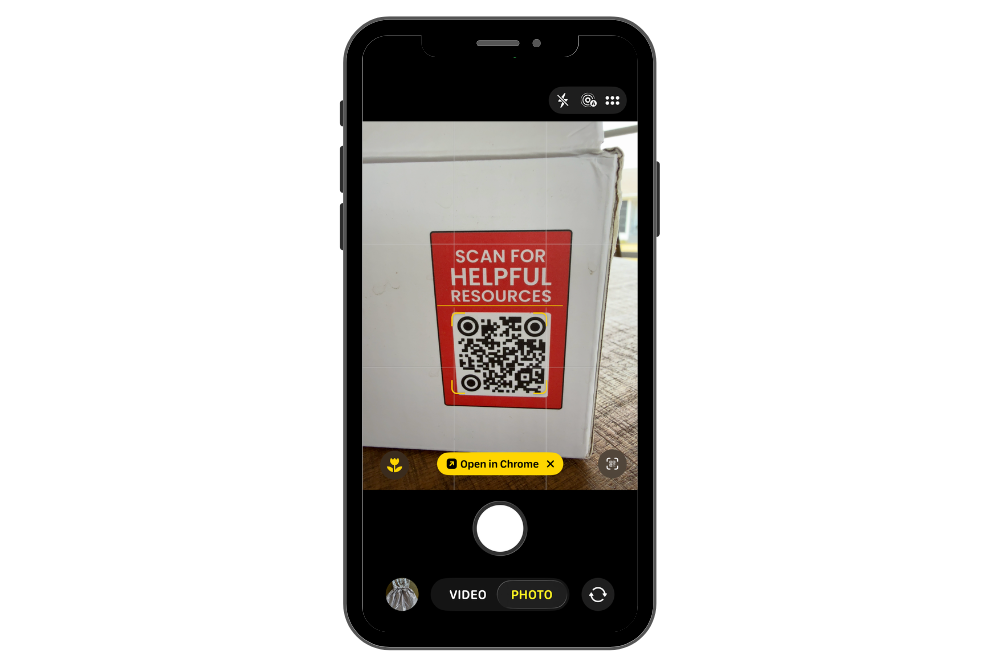
You probably see QR codes everywhere—on restaurant menus, parking meters, event signs, product packaging, and even television commercials. A QR code is a type of barcode that can open something on your phone, such as a website, restaurant menu, payment page, app, or contact card.
How to Scan a QR Code
- Open the Camera app on your iPhone.
- Point the camera at the QR code and hold the phone still.
- A link will appear near the bottom of the screen.
- Pause and read the link before tapping it.
QR codes are convenient, but scammers can use them to send you to fake websites designed to steal passwords, credit card numbers, or other personal information.
Before You Tap, Ask:
- Does this QR code make sense here?
- Does the website name match the business or organization?
- Does the code appear to be printed normally, or is it a sticker placed over another code?
- Is the page unexpectedly asking for a password, payment, or personal information?
Be especially cautious with QR codes:
- In unexpected texts, emails, packages, or letters
- On parking meters or signs that appear altered that create a sense of urgency
- That immediately ask you to log in or pay
- That tell you to download an unfamiliar app
Remember: Pause. Preview. Verify.
Scanning a QR code does not mean you must open the link. Look at the website address first. When you are unsure, close the Camera app and go directly to the organization’s official website or app instead.
Think of a QR code as a link you cannot see until you scan it. If you would not trust the same link in an email or text message, do not trust it simply because it appears inside a QR code.